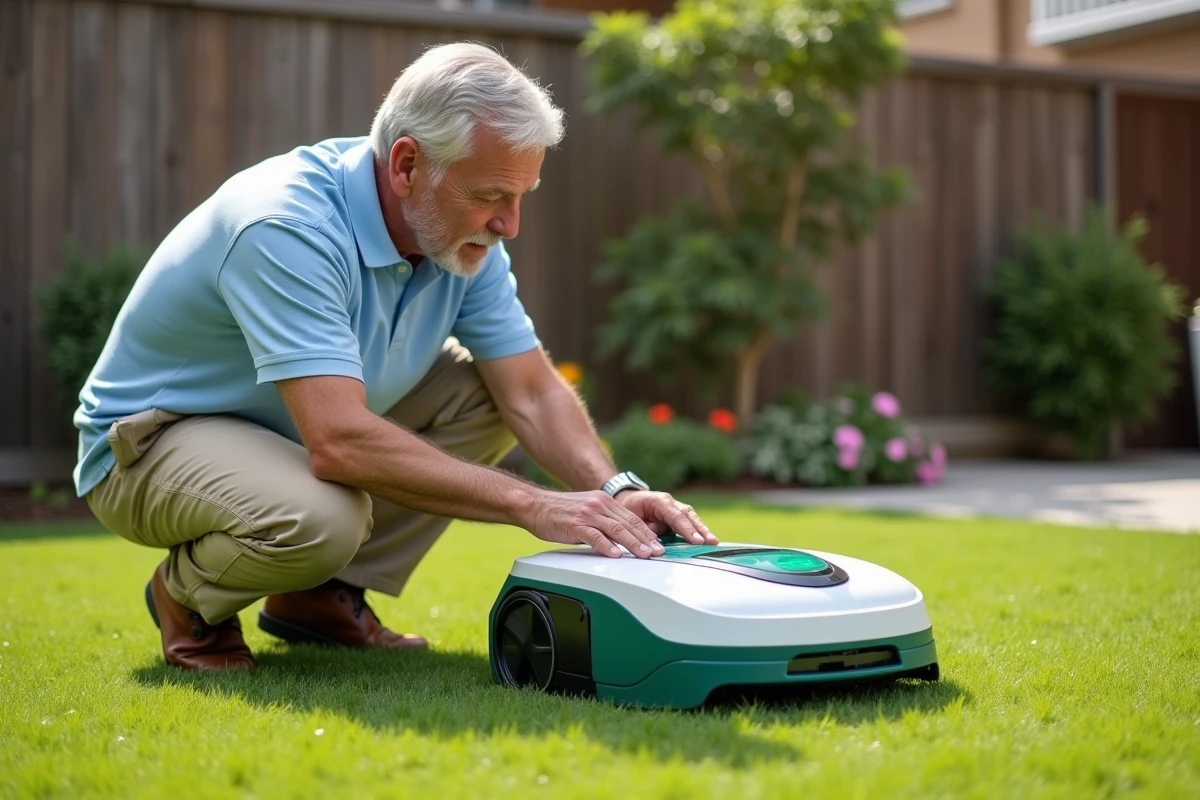
The Parkside robotic lawn mower sold at Lidl uses a PIN code as an anti-theft system. This code, set during the initial setup via the Parkside app, locks the device after each prolonged stop or return to the station. Forgetting this code, changing phones, or an app bug can render the robot unusable, even if it is physically in perfect condition.
Software lock or hardware lock: identify the issue before acting
Before any manipulation, it is essential to distinguish between two very different situations. A software lock occurs when the robot refuses to start because the entered PIN code is incorrect or the app no longer syncs via Bluetooth. The robot’s screen then displays a message requesting the code.
A hardware lock, on the other hand, results from a faulty safety sensor, a battery issue, or a malfunction of the mechanical anti-theft system. In this case, the robot may show no signs of activity or stop abruptly during mowing without displaying a code request.
To differentiate: place the robot on its charging station and observe the indicators. If the charging light turns on and the screen displays the PIN request, the problem is software-related. If nothing lights up or the robot emits unusual error beeps, the issue is likely hardware-related and requires a visit to customer service.
A detailed guide allows you to unlock or reset a Parkside robotic lawn mower by following the procedure suitable for each model.
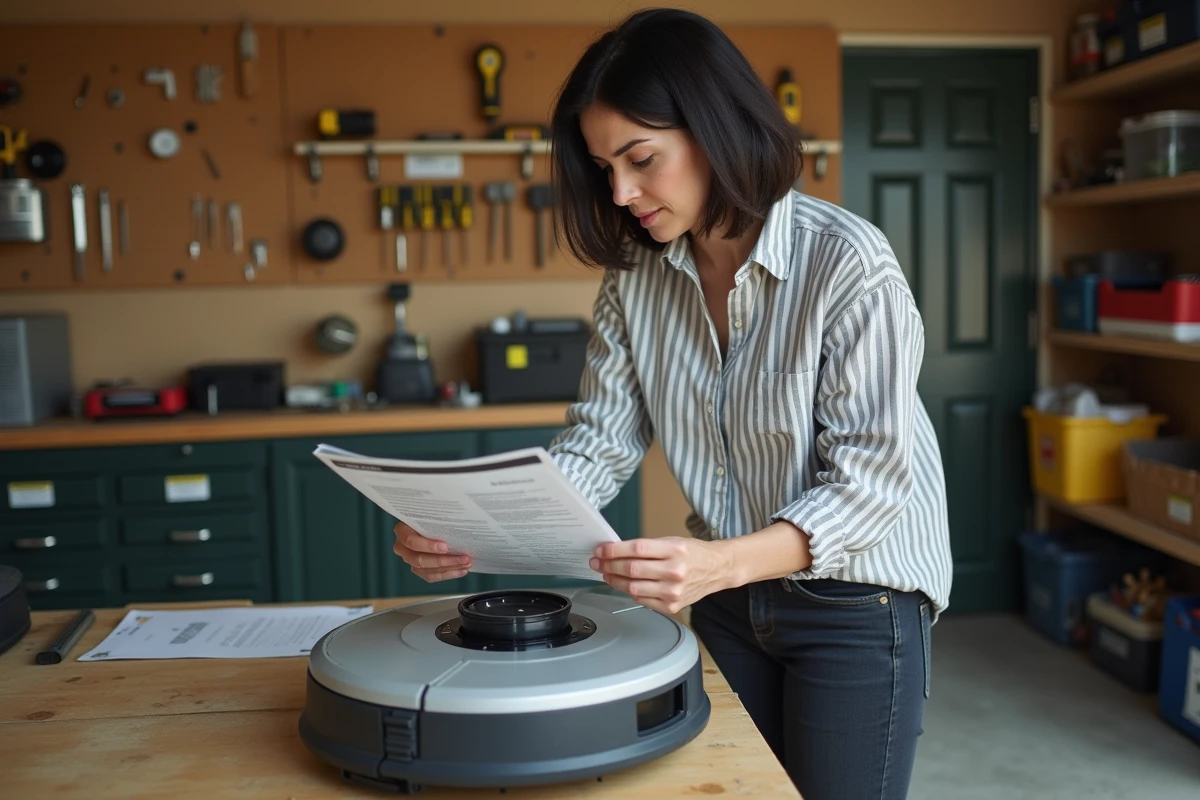
Resetting the Parkside PIN code via the app
The most direct method involves the Parkside mobile app, available on Android and iOS. The app communicates with the robot via Bluetooth, which requires you to be within a short distance of the device (a few meters, without obstacles).
Standard reset procedure
- Open the Parkside app and ensure that your phone’s Bluetooth is enabled. Approach the robot placed on its station.
- Access the robot’s settings in the app, then look for the option related to the PIN code or security. Depending on the model (PLG 20 A4 or PMRDA 20-Li A1), the path in the menus may vary slightly.
- Select the PIN code reset. The app usually asks you to confirm the owner’s identity via the associated user account.
- Set a new PIN code and note it in a safe place, away from the phone.
If the app does not detect the robot, disable and then re-enable Bluetooth. Completely close the app and relaunch it. On some Android phones, you may also need to enable location services for the Bluetooth connection to work.
Changing phones or losing account access
Reinstalling the app on a new phone is not always sufficient. The robot remains associated with the initial user account. You must reconnect with the same credentials (email address and password) to regain access to the robot and its settings.
If you completely lose your Parkside account credentials, recovery goes through the app’s forgotten password procedure. Without access to the original email address, the situation becomes complicated and may require direct contact with Lidl support.
Restoring factory settings on a Parkside robot
The factory reset erases all configurations: PIN code, mowing areas, scheduled times, association with the user account. This operation returns the robot to its out-of-the-box state.
The manual for the PMRDA 20-Li A1 model mentions this option in its menus. To access it, the robot must be placed on the charging station and turned on. Navigation can be done either via the device’s screen or through the app.
After a factory reset, the robot must be fully reconfigured: new PIN code, redefinition of the peripheral cable, setting up mowing areas and starting points. Expect a good work session to get everything back in place, especially if your terrain has several secondary areas.
This option should only be used as a last resort. If the problem is limited to the PIN code, resetting via the app is far preferable.
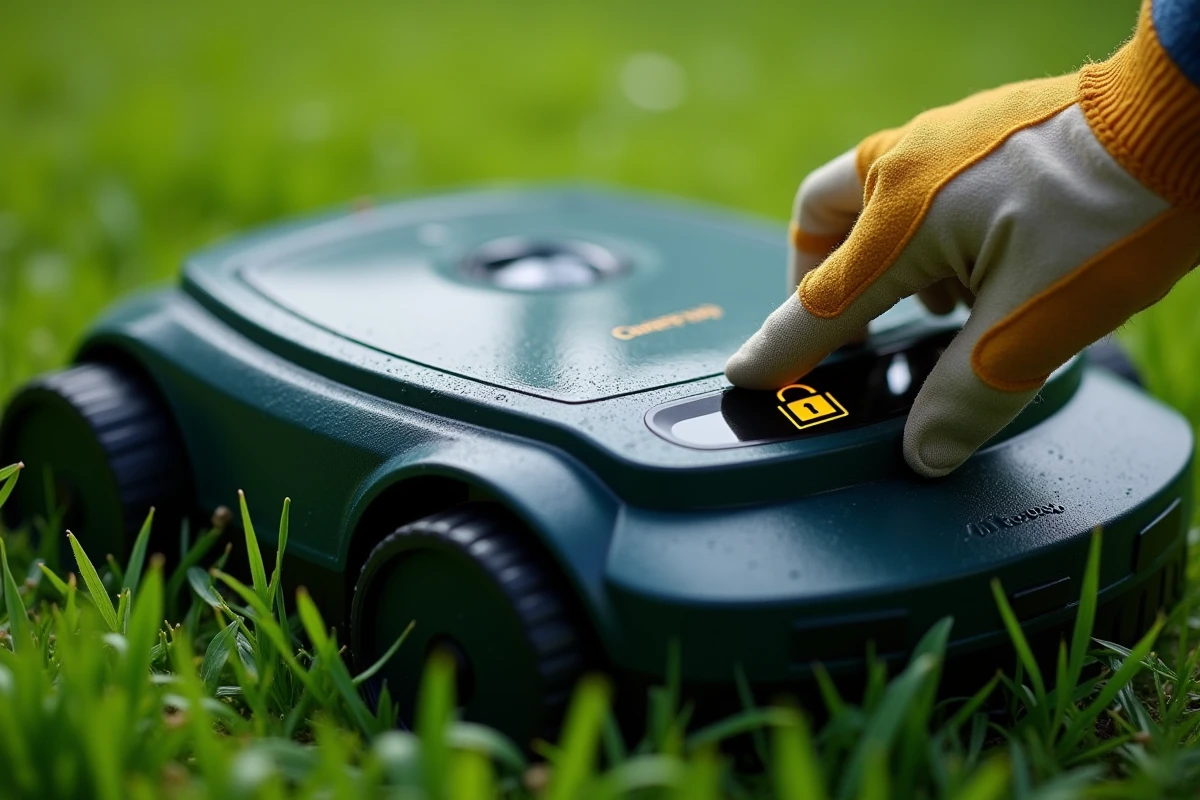
Parkside robot blocked without access to the app: alternatives
The Parkside manuals do not document a purely physical reset procedure (button combinations on the robot, for example). The mobile app remains the mandatory access point for any modification of the PIN code or factory reset.
This dependence on digital solutions poses a real problem in several concrete cases:
- Buying a second-hand robot whose seller has not dissociated their account. The robot remains locked to the previous owner.
- Broken or stolen smartphone, with no possibility of quickly reinstalling the app.
- Persistent app bug after a phone operating system update.
In these situations, the only reliable solution is to contact Lidl’s customer service or a specialized repair service like SAV03, which has the technical documentation and diagnostic tools for Parkside products. Proof of purchase (receipt, order confirmation) will be required to prove that the robot belongs to you.
Precautions to avoid future locking of the robotic lawn mower
Write down your PIN code on paper and store it with the robot’s documents (invoice, manual). Do not rely solely on the app’s memory.
Keep your Parkside account credentials (email address and password) in a password manager. Before changing phones, ensure that you can reconnect to the app from another device.
If you sell the robot, perform a factory reset before the sale and dissociate the device from your account. This way, the buyer can configure the robot with their own credentials, without being blocked by your old account.
The PIN lock protects against theft, but it turns a simple forgetfulness into a frustrating situation. A minimum of organization at the time of installation can prevent most calls to customer service.